

Update Software App: Updates
Vidmark Inc.
Keeping Android software current sounds simple until an update refuses to appear, a scan seems incomplete, or a phone still reports an old version after an installation. That is the problem Update Software is designed to make easier to check. I spent time looking at it as a practical utility rather than treating it like a magic repair tool, and my main impression is that it works best as a central place to look for pending app updates, not as a replacement for the phone’s own update system.
Published by Vidmark Inc., this free utility sits in the Libraries & Demo section and is aimed at everyday Android users who want a quicker way to review update status. Its store summary focuses on checking phone software, while the short description reduces the idea to “Update Software.” That is a modest promise, and it is the right way to approach the app: useful for visibility and routine checks, but not something that can force every manufacturer, carrier, or app store process to behave differently.
The app has reached over a million installs and holds a 4.4 average from roughly seventeen thousand ratings. Those figures suggest that the basic idea is easy for many people to understand. Still, a good rating does not remove the need to know where the app’s job ends. If you are deciding whether it belongs on your phone, the most important question is not simply whether it finds updates. It is whether you need a separate checker for the way you manage your device.
Getting past the points where update checks usually stall
Why the first scan can feel less useful than expected
The most common frustration with an update checker is the difference between “there may be an update” and “the update is ready to install.” A checker can point you toward software that needs attention, but the actual download and installation may still depend on the relevant app marketplace, the phone manufacturer, the device model, network conditions, or account status. I would not judge the app harshly when it directs me to another part of the phone. That handoff is often necessary.
What can confuse users is seeing a result that appears unchanged after they have already updated something. In that situation, I first close the checker, open the normal store used for the app, and verify the installed version there. I then reopen the checker and scan again. The important lesson is to treat the result as a prompt to verify, not as the final authority on every installation state.
Related News

Instagram Is No Longer a Photo App. It Is an Attention Engine

Microsoft Teams Mobile: When Collaboration Becomes Navigation

How the NFL App Adapts to Android and iOS Updates

Temu: Elevate Your Shopping Experience to Billionaire Status

Why Traffic Rider Works Best as a Precision Reflex Game

How Google’s Find Hub Transforms Everyday Searches
A second sticking point is scope. People often use “software update” to mean three different things: updates for downloaded apps, an Android system update, and manufacturer components such as security or device services. These are not always delivered through the same route. Update Software is most useful when I want a quick review of app-related maintenance. For a full operating-system upgrade, I still use the phone’s Settings area because that is where the manufacturer exposes device-specific eligibility and installation controls.
A sensible setup before trusting the results
I recommend starting with a simple baseline. Make sure the phone has a working internet connection, allow the initial check enough time to finish, and avoid switching rapidly between screens while it is gathering information. A weak connection can make an ordinary check look broken, especially if the phone is moving between mobile data and Wi-Fi.
It is also worth checking the device’s own store separately before assuming the checker missed something. Open the store, look at its pending updates area, and note whether an app is waiting for approval, paused, or already current. This comparison gives you a useful reference. If both places agree, the result is easier to trust. If they differ, the store is normally the better place to complete the update because it controls the installation.
Gallery
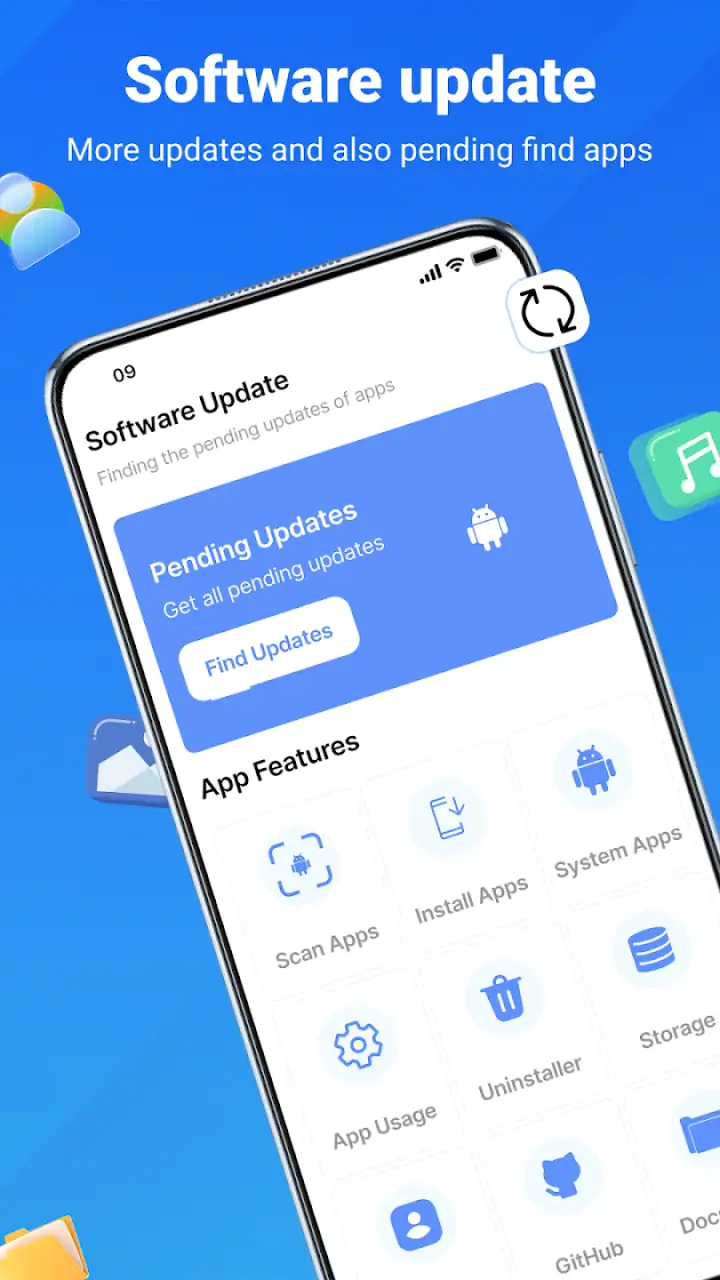
The application supports Android 7.0 and later, which makes it accessible to a broad range of phones. That does not mean every older device will offer the same update options. Android version, manufacturer software, available storage, and app compatibility can all affect what happens next. I would check the phone’s own system information before installing it on an older device, particularly if storage is tight or the phone already struggles with background tasks.
Because the app is free to install and rated for Everyone, it is approachable for families and less technical users. There are in-app purchases ranging from $2.99 to $48.99 per item, so I would pay attention to any purchase screen rather than tapping through automatically. A person who only wants occasional update checks should think carefully about whether any paid option adds value to their routine. The basic appeal is the checking workflow, not a reason to spend without understanding what is being offered.
A practical routine for a busy phone
My preferred use case is a short maintenance routine rather than constant monitoring. Once a week, I would run a check when connected to reliable Wi-Fi, review the results, and then handle actual installations in the normal store or device settings. This keeps the app in a supporting role and avoids the false expectation that repeated scans will make updates arrive sooner.
There is a useful advantage to this approach when managing a phone that has many installed apps. Instead of opening each app page one by one, I can use the checker as a starting point and then focus on the items that matter most. Messaging, banking, navigation, work, and security-related apps deserve attention before games or rarely used tools. The checker does not make that decision for me; it helps me create a more manageable order of work.
Another non-obvious benefit is diagnostic. If an app appears outdated in the checker but not in the store, that mismatch tells me to investigate the phone rather than repeatedly pressing scan. I may be looking at a staged rollout, a different account, an app installed from another source, or a version that is not compatible with the device. The result is not just an update list; it can be a clue that two software channels are reporting different states.
Recovering when a result does not change
When a scan seems frozen or repeats an old result, I use a calm sequence instead of uninstalling immediately. I check the connection, leave the screen alone briefly, and then reopen the app. Next, I compare the item with the phone’s store and confirm whether the app is actually installed under the same account and profile. Work profiles, secondary users, or apps installed outside the usual store can make a simple comparison less straightforward.
If the store shows an update but the installation will not begin, I check free storage and the device’s normal download behavior. A nearly full phone can create symptoms that look like a problem with the checker. I also avoid starting several large downloads together. Letting one update complete before beginning another makes it easier to identify which step failed.
For a system update, I leave the checker out of the repair process. I open the phone’s Settings, find the system update area, and follow the manufacturer’s instructions there. This distinction is important because an app checker cannot change whether a particular phone has been approved for a firmware release. It can be helpful to know that something may need attention, but the official device pathway remains the safer place to install operating-system software.
One practical tip is to record the app name and version shown before taking action. If the result changes after installation, I know the workflow succeeded. If it does not, I have a clearer starting point for checking the store, compatibility, or the app’s own behavior. This small habit is more useful than scanning repeatedly without noting what changed.
When the checker is not the real cause
Many apparent update failures originate elsewhere. The phone may be offline, the store may be signed into a different account, the developer may be releasing an update gradually, or the device may not meet the newer version’s requirements. A manufacturer can also delay a system update for a particular model or region. None of these situations is solved by pressing a scan button more often.
Battery and storage are worth considering too. Installation services may pause when the battery is low, when power-saving behavior is aggressive, or when there is not enough room for a download and its temporary files. I would charge the phone, remove only files I no longer need, and retry through the official store. I would not delete important photos or documents simply to make a checker report a cleaner result.
Security software, restricted networks, and parental or workplace controls can also affect downloads. If the phone works normally on one network but not another, the connection is a stronger suspect than Update Software. Likewise, if only one app fails while other updates complete, the problem is probably specific to that app, its account, or its compatibility rather than the checker itself.
This is where the app’s limitations become clear. It does not replace the manufacturer’s update page, and it should not be treated as a universal repair layer. Users who already keep a small number of apps and are comfortable checking the store manually may find the extra step unnecessary. People who expect a single tool to update firmware, repair failed downloads, and override compatibility restrictions are likely to be disappointed.
Who will benefit and who should skip it
I see the strongest fit for people who inherit or manage phones with a crowded app list, users who regularly forget maintenance, and anyone who wants a quick first look before opening several separate pages. It can also help a less technical family member understand that an app may need attention without asking them to interpret every system menu.
I would be more cautious recommending it to someone with a very controlled work device, a phone using several profiles, or a setup where every installation must pass through an organization’s approved channel. In those cases, an additional checker can create confusion if its results do not match the rules enforced by the device. The same applies to users who download apps from multiple sources and need precise source-by-source tracking; a built-in store or dedicated device-management process may be clearer.
Compared with the usual alternative—checking the phone’s app store manually—the main advantage is convenience and a broader initial overview. The disadvantage is an extra layer between the user and the service that actually installs the update. Compared with the phone’s system-update screen, it is less authoritative for Android firmware. I would use it alongside those tools, not instead of them.
What the current release means in daily use
The current version is 2.0.2, and the app was released on November 10, 2022. Those details matter mainly because users should keep their expectations practical: the available experience can depend on the phone’s Android version and the surrounding store services, not just the checker’s version number. If the app behaves differently after an update, I would first repeat the basic comparison with the store and system settings before assuming the phone is damaged.
For a new user, the best first session is deliberately small. Run one check, choose one non-critical app to verify, and compare the result with the official store. That test tells you whether the workflow makes sense on your particular phone. There is no need to begin by updating everything at once, especially on an older device or a metered connection.
My practical verdict
After using it as a maintenance aid, I see Update Software as a convenient front door to update awareness, not a complete update manager. Its real strength is reducing the effort of remembering where to look. It can make routine checks less scattered, particularly for people with many apps or a habit of postponing maintenance.
I would recommend it to users who want a simple reminder and review step, provided they understand that the final installation normally belongs to the relevant store or the phone’s own system settings. I would not install it expecting faster firmware releases, forced compatibility, or automatic recovery from every failed download.
Vidmark Inc. has kept the idea easy to grasp, and the Everyone age rating makes it approachable. Still, the most reliable results come from combining the app with sensible checks: stable internet, enough storage, the correct account, and the official installation route. Used that way, it is a reasonable free utility for keeping app maintenance visible. If your current store routine already feels effortless, you may not need another layer; if updates regularly slip your mind, this app can provide a useful nudge without pretending to solve problems it cannot control.
FAQs for Update Software App: Updates
What is the primary function of the Update Software App: Updates?
The Update Software App: Updates is designed to help users keep their Android or iOS devices running smoothly by ensuring all applications are up to date. It scans your device for outdated apps and notifies you when updates are available, allowing easy and efficient management of your apps’ latest versions.
Does the Update Software App: Updates support automatic updates?
Yes, the app supports automatic updates for applications that allow it. Once enabled, the app will automatically download and install updates when they become available, reducing the need for manual intervention and ensuring your apps are always up to date with the latest features and security patches.
Is the Update Software App: Updates free to use?
The Update Software App: Updates offers a free version with basic features to help manage app updates. However, there may be a premium version or in-app purchases available that provide additional features such as priority updates, ad-free experience, and advanced monitoring tools, enhancing the overall user experience.
How does the Update Software App: Updates handle data privacy and security?
The app is designed with user privacy and security in mind. It requires minimal permissions to function effectively, focusing on accessing only what's necessary for checking and updating apps. Always review the app's privacy policy to understand how your data is managed and ensure it aligns with your personal privacy standards.
Can the Update Software App: Updates fix problems with failed updates?
While the primary function of the app is to manage updates, it also provides troubleshooting solutions for common update issues. If an update fails, the app offers step-by-step guidance to resolve the problem, such as clearing cache or restarting the device, to ensure successful installations.
Pros
- User-friendly interface for easy navigation.
- Supports multiple languages for global users.
- Automatic update reminders keep apps current.
- Small app size saves device storage.
- Compatible with most Android versions.
Cons
- Occasional ads can be intrusive.
- Limited features in the free version.
- Requires internet connection for updates.
- Not all apps are supported for updates.
- Frequent notifications can be annoying.


